Upload order files by hand
Drop one or more files on the upload screen — the channel that needs no set-up.
Make sure the order has somewhere to go
Uploading is the one intake channel with nothing to configure — but it still needs a supplier, because that is what ProcuLink checks the item codes against.
If you have not added one yet, do that first: add a supplier and fill in their identifiers takes about ten minutes. One supplier is enough to start.
If this fails
The upload screen refuses with "Choose a supplier first." and "Add a supplier in the library before uploading a purchase order." when the workspace has none. That is the whole problem — there is nothing wrong with your file.
Open Upload and say who it is going to
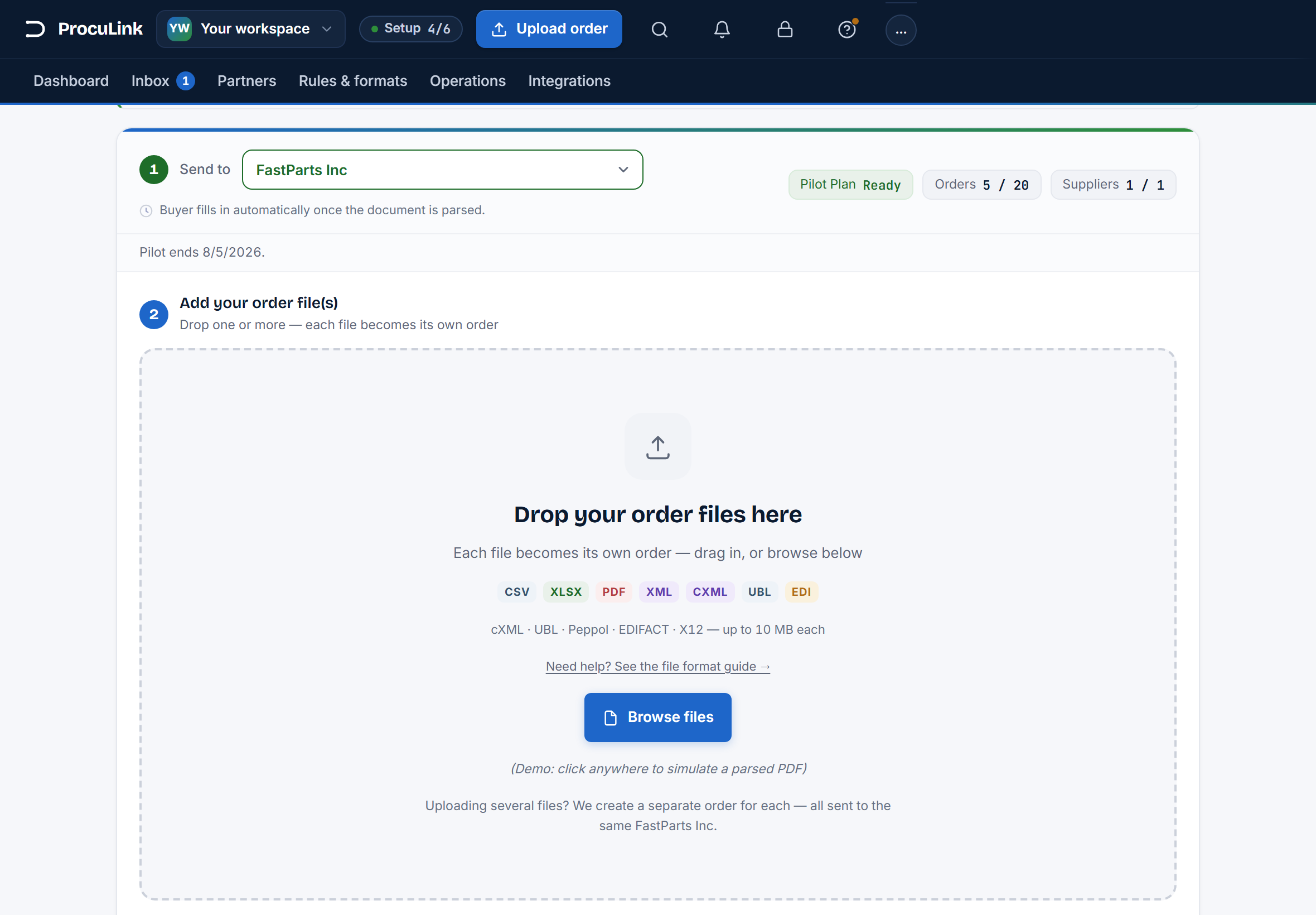
Open Upload from the sidebar. The page is headed Upload an order.
The first control is Send to — the supplier this order is for. Set it before you pick a file, so a wrong pick never reaches the review screen.
You will not find a buyer field. The buyer is read out of the document itself while it parses, which is why the screen says detected from the uploaded document rather than offering a list to guess from.
Add the file — or several
Under Add your order file(s) you can drag files onto the drop zone or use Browse files.
Drop as many as you like. Each file becomes its own order — the upload screen is not a way to merge several documents into one purchase order, and files are never combined.
The formats worth knowing about:
| Format | How it is read |
|---|---|
| CSV, XLSX | Read directly. The most predictable path, and the fastest to review. |
| PDF with a text layer | Read by AI extraction. Reliable for ordinary supplier PDFs. |
| Scanned or image-only PDF | Read by an AI vision fallback. There is no text to check the result against, so every line is flagged for review before it can be sent. |
| XML, cXML, UBL/Peppol, EDIFACT ORDERS, X12 850, SAP IDoc ORDERS05 | Parsed into the same order model as everything else. Best when you already receive structured exports. |
Each file can be up to 10 MB.
If this fails
A file the parser does not handle is refused before upload, by name: "… isn't supported. We read spreadsheets (Excel, CSV), PDFs, and order files (XML, EDI). Try a different file." Export the order again as CSV or XLSX — that is nearly always quicker than arguing with an unusual format.
Upload and watch it parse
Press ↑ Upload & review. ProcuLink parses in the background and takes you to the review screen for that order when it is ready — usually within ten seconds for CSV and XLSX, and under half a minute for a PDF.
The order opens on its own review screen with a purchase-order number, a supplier, and its line items — and it is in your Inbox from now on, whether or not you finish reviewing it today.
If this fails
If the button reads Processing paused instead, the workspace is read-only: either the Pilot trial has ended or the plan's order allowance is used up. Previous orders stay readable; new processing resumes on an upgrade. See plans, quotas, and what happens at the limit.
Finish the order in review
Uploading is only the first half. The review screen is where you fix whatever could not be decided automatically — an unmatched item code, a date the parser read two ways — and then send.
That is its own procedure: review an order and send it.
If this fails
An order that stops at Failed rather than reaching review is a document problem, not an upload problem. The usual causes are a missing required column, a scanned PDF with no readable text, or an encoding that mangled the header row — see troubleshooting common parse errors.
Decide whether you want to keep doing this by hand
Manual upload is the right answer for a handful of orders a week, for one-offs, and for testing a new supplier's format before you automate anything.
Past that, every other intake channel exists so nobody has to remember: orders can arrive by email, over the API, from an SFTP folder, or from an S3 or R2 bucket. They all land in the same Inbox and are reviewed the same way — only the way in differs. Upload and the API stay on every plan; the email, SFTP and S3 routes are Growth plan and up.
You can get any order into ProcuLink in under a minute without setting anything up, and you know which channel to move to when the volume makes that worth it.