Push orders in over the API
Create an API key and post structured orders from an ERP or automation tool. JSON, not files.
Check this is the right channel before you build anything
The inbound order API takes JSON, not files. It expects an order that has already been broken into
fields: a purchase-order number, a supplier, and a lines array.
That is the whole distinction, and getting it wrong costs an afternoon:
- Your ERP or procurement tool can emit the order as data → this guide.
- What you have is a CSV, XLSX, PDF, or XML/EDI document → send the document instead, so ProcuLink parses it: by email, from an SFTP folder, from S3 or R2, or by hand. Posting a file to this endpoint will not work. Upload and this API are on every plan; the email, SFTP and S3 routes are Growth plan and up.
You know which of the two shapes you have, and you are on the right guide.
Create an API key
Open Settings → API keys. That tab is where the credential is made — one per integration, so you can revoke one without breaking the rest.
Press + Create key. A Create new key form opens; give it a name that says where it will be used —
the field suggests Production integration or Staging webhook — and press Create key.
The key appears once, under Copy your new API key now, and the dialog says so plainly: it cannot be retrieved again after you close it. Copy it into your secret store before you do anything else.
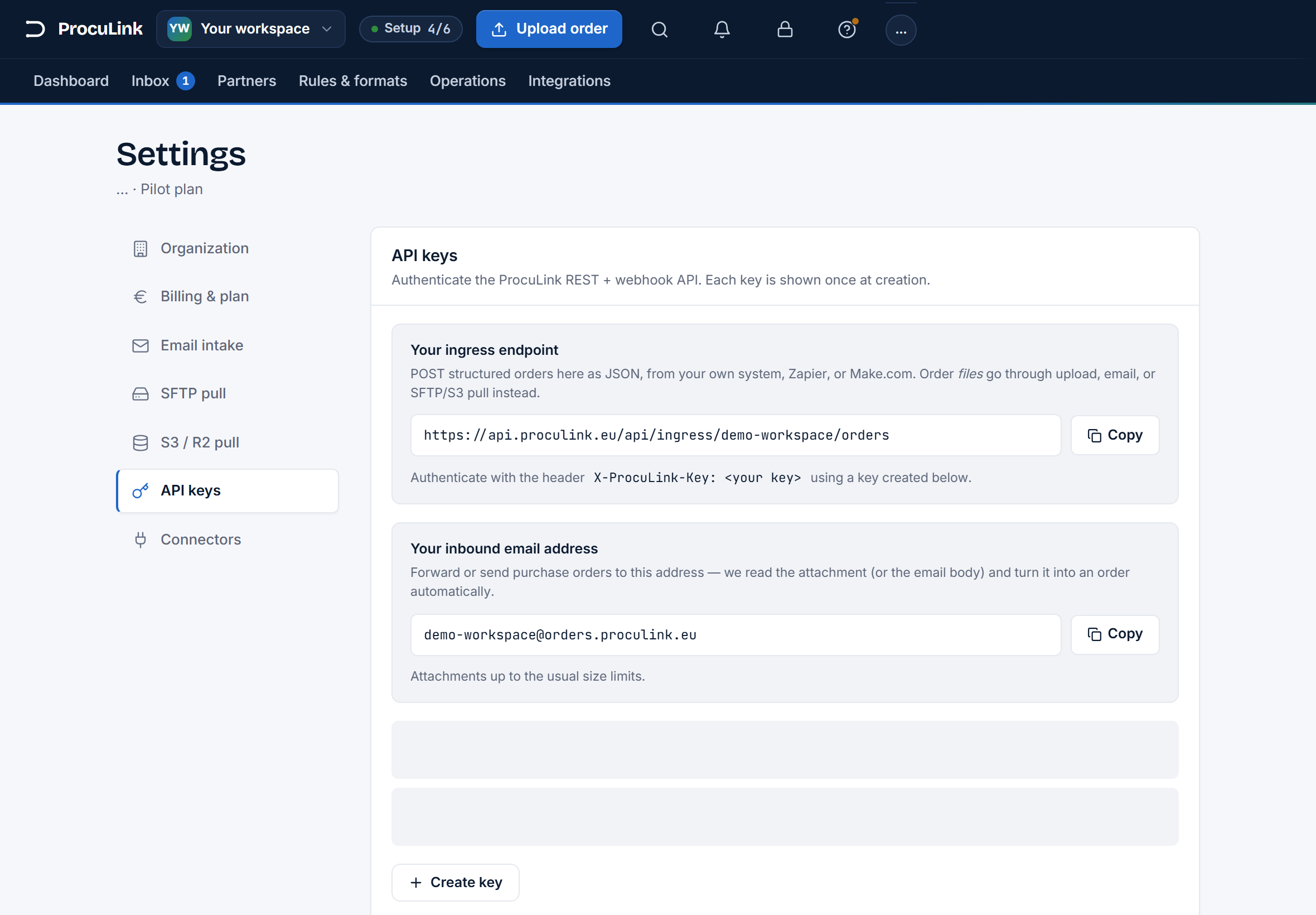
Above the key list, Your ingress endpoint shows the exact URL for your workspace. It ends in your workspace slug — the same slug as your inbound email address:
https://api.proculink.eu/api/ingress/{slug}/orders
Authentication is a header, not a bearer token in the usual Authorization form:
X-ProcuLink-Key: plk_your_key_here
If this fails
If you close the dialog before copying, the key is gone — there is no way to reveal it again, by design. Revoke it and create another. That is a 30-second fix, and it is safer than any scheme that would let a secret be re-read.
Prove the key works before you send any data
Test the credential on its own, so that a failure later is unambiguous:
curl -i https://api.proculink.eu/api/ingress/{slug}/ping -H "X-ProcuLink-Key: plk_your_key_here"
A small OK payload means the key is valid and belongs to that workspace slug. Do this first — almost every "the API doesn't work" report turns out to be a slug and key that do not belong together.
If this fails
401 or 403 means the key is missing, mistyped, or issued for a different workspace than the slug in the URL. Check both halves. A trailing newline copied along with the key is a common culprit.
Post one real order
Now send an actual order. supplierId and at least one line are required; supplierId accepts either the
supplier's GUID or its exact name as spelled in your workspace.
curl -X POST https://api.proculink.eu/api/ingress/{slug}/orders \
  -H "X-ProcuLink-Key: plk_your_key_here" \
  -H "Content-Type: application/json" \
  -d '{
    "orderNumber": "PO-10432",
    "orderDate": "2026-07-04",
    "currency": "EUR",
    "supplierId": "Acme Components",
    "lines": [
      {
        "buyerItemCode": "WIDGET-BLUE-M",
        "description": "Blue widget, medium",
        "quantity": 24,
        "unit": "EA",
        "unitPrice": 4.5
      }
    ]
  }'
Two details that cause most of the 400s: quantity and unitPrice are numbers, not strings, and
orderDate is an ISO date (YYYY-MM-DD).
A success returns the created order so you can log it:
{ "id": "6f2a1c9e-1b7a-4d0e-9f3a-2c5b8e0a1d44", "status": "needs_review", "linesCount": 1 }
The order is in your Inbox with that id, ready for review — and your integration has an id it can store against its own record.
If this fails
400 "Order must have at least one line." — lines is empty or missing.
400 "Supplier … not found." — the GUID or name does not match a supplier in this workspace; create the
supplier first, and check for a trailing space in the name. Every field is listed in the inbound order
API schema reference.
Make a repeat harmless
Automation platforms deliver at-least-once. Sooner or later the same order arrives twice, and you do not want two purchase orders going to the supplier.
Send an Idempotency-Key header with a value that is stable for that order — your own order id is ideal:
Idempotency-Key: erp-order-88213
A repeat within 24 hours returns the original order, marked idempotentReplay: true, instead of
creating a second one. If you omit the header entirely, ProcuLink still derives a key from the slug, the
PO number, and the line shape, so a verbatim retry is de-duplicated — but an explicit key is better,
because it survives a retry that changes an unimportant field.
Your integration can retry safely, and a duplicate delivery from the platform is a no-op rather than a second order to the supplier.
Connect it to Zapier or Make, if that is your route
Neither tool needs a dedicated ProcuLink app — the generic Webhooks action does it:
- Method
POST, URLhttps://api.proculink.eu/api/ingress/{slug}/orders - Header
X-ProcuLink-Keywith your key - Header
Idempotency-Keymapped to the trigger's own record id - The JSON body from step 4 as the raw payload, with your trigger's fields mapped into
orderNumber,supplierId, and each line
If this fails
If the platform sends the body as form data rather than raw JSON, the endpoint rejects it. Look for the
"custom request" or "raw body" option in the action and set the content type to application/json
explicitly.
Confirm what a 2xx actually means
A 2xx from this endpoint means ProcuLink accepted and stored the order. It does not mean a supplier
accepted anything — the order still goes through review and delivery like any other, and delivery reports
its own separate result.
So after the first few automated orders, check the Inbox rather than your integration's logs:
- Orders appear with the right purchase-order numbers and line counts.
- Nothing is piling up unreviewed. If lines routinely need fixing, the supplier's catalog is probably missing — see import a supplier catalog.
Orders arrive by themselves from the system that already knows about them, and the only ones that need a person are the ones that genuinely need a decision.