Add a supplier and fill in their identifiers
Create the supplier record, then add the VAT number, registry code, GLN, and domain that let ProcuLink recognise their documents.
Create the record — the name is all that is required
Open Partners → Suppliers and choose New supplier.
The panel says what it needs: "Name the supplier. You can configure mappings and delivery after." Fill in
Supplier name — for example Acme Components — and press Add supplier. Everything else on that
panel is optional and can be changed later.
Two optional pickers are offered while you are there, and there is no penalty for skipping both:
- Delivery channel — HTTP, SFTP, FTPS, Email, Erply ERP, or Directo ERP. SFTP, FTPS and email are on every plan; HTTP is Growth plan and up, and the Erply and Directo ERP adapters are Enterprise plan and up. Configuring it properly is its own job: set up delivery to a supplier and test-fire it.
- Output format — cXML, UBL, X12, XML, CSV, or JSON. All on every plan except cXML, which is Operations plan and up. Also settable later, on the supplier's Delivery tab.
If this fails
If the button reads Supplier limit reached instead of New supplier, you are at your plan's ceiling. The banner says which: "Your … plan includes N suppliers. Existing supplier flows remain viewable. Upgrade when you are ready to add another supplier route." Nothing you already have is affected — see plans and quotas.
Fill in the identifiers
Open the supplier you just created and stay on the Overview tab. The Identifiers card explains why it exists: "Used to recognise documents from this supplier. When an order arrives without a named supplier, we compare the numbers printed on it against these."
Fill in whatever you have. Blanks are fine — each one you fill is one more way an order can identify itself.
| Field | What goes in it | Example |
|---|---|---|
| VAT number | As registered, including the country prefix | EE101234567 |
| Registration number | The company registry code | 12345678 |
| EDI / GLN code | GLN, ILN, or Peppol participant id | 5412345000176 |
| Primary domain | The domain they send email from | acme.com |
Press Save. You should see Saved.
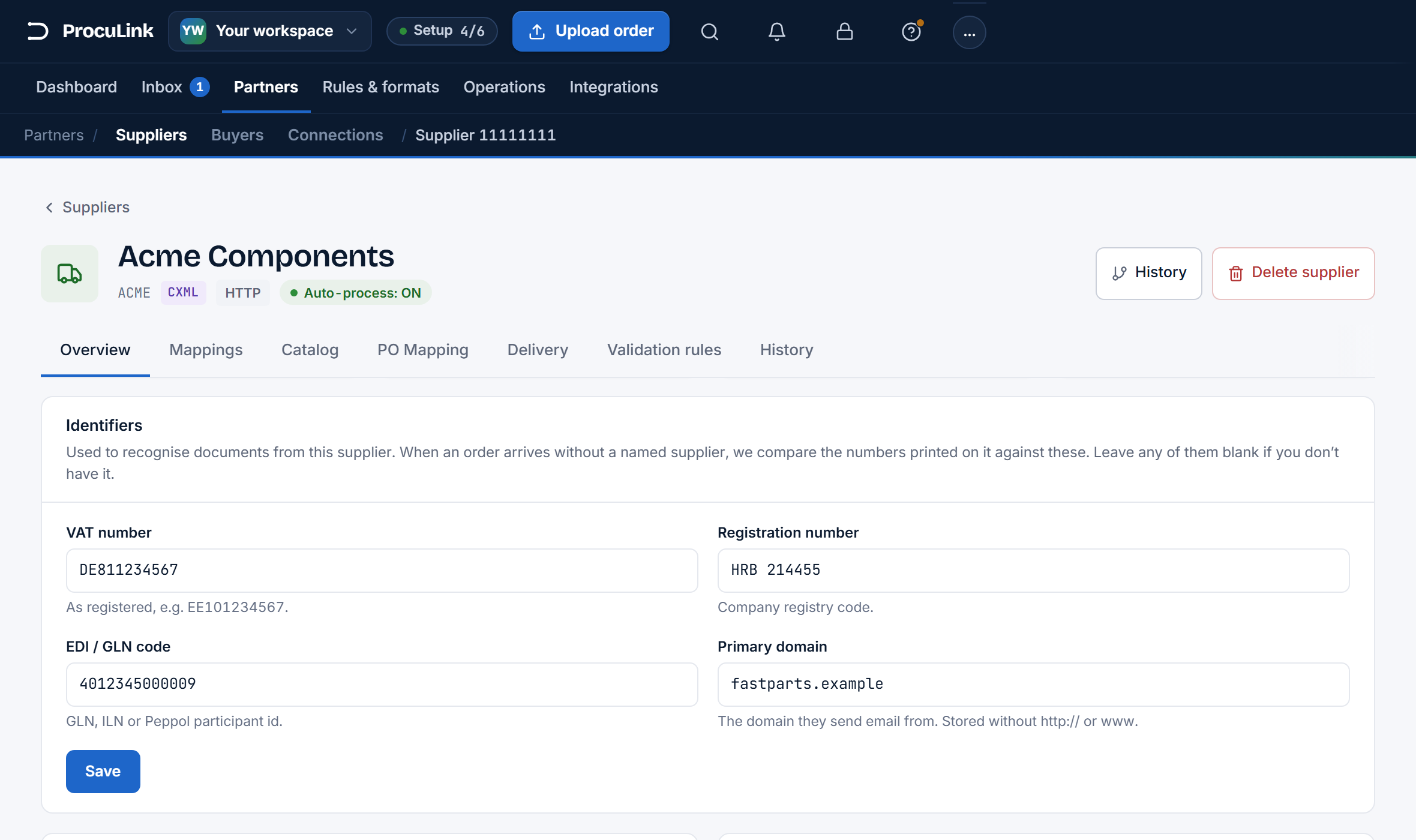
The card shows the values back after saving, and the domain has been tidied — see the next step.
If this fails
If the domain reappears looking different from what you typed, that is deliberate, not a bug: it is stored
without http://, without www., and lower-cased, so https://WWW.Acme.com/ becomes acme.com. The card
re-reads the stored value after saving so you always see what is actually held.
Understand what the identifiers actually buy you
This is the payoff, and it is worth knowing before you decide whether the ten minutes of typing is justified.
Most orders name their supplier plainly and route themselves. When one does not — a document that only carries a VAT number in the footer, or mail from an address ProcuLink has not seen before — the order does not fail and it does not guess. It waits, marked Needs supplier.
On that order, ProcuLink offers a short ranked list of the closest matches, each with a score, a one-sentence reason, and a Why this match breakdown naming the signal it used: Identity match, Sender domain, Past routing, Document layout, Catalog match, or Name on document.
Three of those six signals come directly from this card. A supplier with no identifiers can still be suggested — on layout, on catalog, on a name in the text — but with fewer, weaker signals to go on.
Nothing is ever assigned automatically. The suggestions are a shortlist; a person still chooses. That is covered in review an order and send it.
Load their item codes
The supplier record on its own knows nothing about what they sell. Until it does, every unfamiliar item code on an order is something you resolve by hand, and code suggestions have nothing real to draw on.
Importing the catalog once fixes that permanently: import a supplier catalog from a file, or point ProcuLink at the supplier's own feed with keep a catalog in sync automatically.
The Catalog tab shows a product count instead of an empty state, and item-code suggestions are drawn from codes this supplier really uses.
Give the finished order somewhere to go
A supplier with no delivery configured can still receive orders, be reviewed, and be transformed — sending simply stops honestly at delivery not set up rather than pretending.
When you are ready, the Delivery tab is where you pick the channel they actually use and prove it with a test-fire: set up delivery to a supplier and test-fire it.
Confirm the supplier is ready
Open the supplier and check the tabs across the top:
- Overview — identifiers saved.
- Catalog — a product count, not an empty state.
- Delivery — a channel and an output format, with a green test-fire behind it.
Any one of those can wait. All three done is a supplier that routes its own orders, checks its own item codes, and can be sent to.
An order from this supplier can arrive by any channel, identify itself, be checked against real item codes, and be delivered — without you configuring anything else.