Import a supplier catalog from a file
Load the supplier's item codes from a CSV or XLSX so suggestions are grounded in real codes.
Know what you get for the ten minutes
Without a catalog, ProcuLink has no idea what this supplier sells. An order line carrying a buyer code they have never heard of is something you resolve by hand, every time, on every order.
With one, three things change: unknown codes are flagged rather than passing quietly, suggestions are drawn from codes this supplier really uses instead of being invented, and the review screen can search their products as you type.
The Catalog tab puts it in one line: "The supplier's valid product codes. With a catalog, the AI suggests only real codes and unknown codes are flagged."
Check the file has a code column
There is exactly one required column: the supplier's product code. A row with a blank code is skipped. Everything else is optional.
code,name,unit,price,barcode
ABC-100,Blue widget medium,EA,4.50,4006381333931
ABC-101,Blue widget large,EA,5.20,4006381333948
You rarely have to rename anything, because common header names are recognised case-insensitively:
| Field | Headers also accepted |
|---|---|
| code | sku, product_code, item_code, supplier_code, supplier part id |
| name | description, product_name, title, item description |
| unit | uom, unit_of_measure |
| price | unit_price, list_price |
| barcode | gtin, ean, upc |
currency and an external_id (product_id, erp_id, manufacturer part id) are recognised too.
Two things you do not need to fix by hand: decimal separators (4.50, 4,50, 1.234,56 and
1,234.56 all parse correctly — the last separator is read as the decimal point) and delimiters (comma,
semicolon, and tab are detected automatically).
If this fails
If no column maps to code, the import brings in zero products rather than guessing one from another
column. Rename the column to something in the table above, or set a per-source column mapping — which is
part of keeping a catalog in sync automatically. Full detail is in
the supplier catalog CSV field guide.
Import it
Open Partners → Suppliers → the supplier → Catalog and choose Import CSV / XLSX. Pick the file.
When it finishes, the result is stated in numbers rather than a checkmark:
Imported N new, N updated, N skipped — N products total.
Read all four. Skipped is the one that matters: those are rows with no usable code, and a large skip count means the file's code column is not the one you thought.
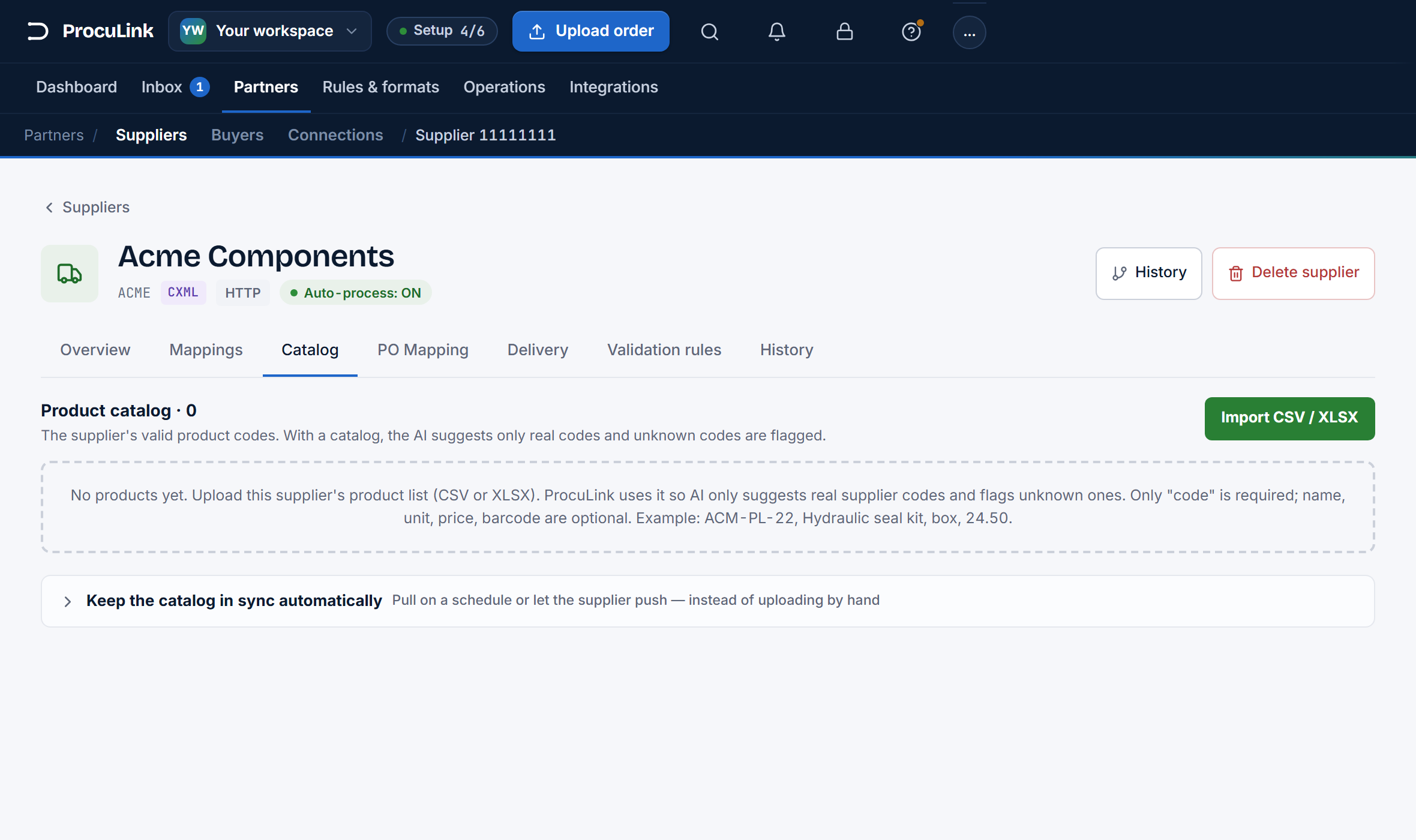
The tab heading reads Product catalog · N with a real number, and the table below lists Code, Name, Unit, Price, and Barcode for the supplier's products.
If this fails
"0 products imported" is nearly always the missing code column from step 2. Garbled accented names mean the file is not UTF-8 — ask the supplier to export as UTF-8, or set the encoding on an automatic feed. Prices that look 100× off are usually a grouping separator the source got wrong; check the raw values in the file before blaming the import.
Spot-check five rows
Do not skip this. An import that reports thousands of rows can still be subtly wrong — the classic case is a column that landed in the wrong field, so every product has a barcode where its price should be.
Use the search box on the Catalog tab and look up five products you know. Check that the code is the one you would quote to the supplier, the name is readable, and the price is the right order of magnitude.
Five known products come back with the right code, a sensible name, and a plausible price.
Know what a re-import does before you need to
Suppliers send new price lists. Re-importing is safe, and it is worth knowing exactly why:
- A code that is already there is updated in place — name, unit, price, barcode, currency, and external id are overwritten from the new row.
- A code that is new is created.
- A code that had been discontinued is reactivated when it reappears.
So importing the same file twice changes nothing, and importing a newer price list updates prices without creating duplicates. Matching is on the code, scoped to this one supplier.
The exception worth remembering: a re-import does not delete products that are missing from the new file. To remove discontinued products, use Clear on the Catalog tab and import the current list fresh.
If this fails
Clear deletes every product for this supplier. Only reach for it when you have the full current list in hand — the point of clearing is to replace, not to tidy up.
Decide whether to keep doing this by hand
Importing by file is right when the list changes a few times a year, or while you are still finding out whether a supplier's format is usable at all.
When prices move monthly — or when the supplier publishes a feed you could just point at — stop doing it by hand: keep a catalog in sync automatically sets up a scheduled pull from their own file server or API. It uses the same parsing and the same upsert rules as this manual import, so nothing you have learned here goes to waste.
The supplier's real item codes are in ProcuLink, order lines can be checked against them, and you know whether this file is something you will be uploading again next month or automating away.