Review an order and send it
Work the issue list, assign a supplier when the document did not name one, and send — or find out honestly why you cannot yet.
Open the order and read the header
Open the order from the Inbox. The top of the screen tells you four things before you read anything else: the purchase-order number, the status, who it is from and going to, and the total.
Read the total first. It is the cheapest sanity check there is — a total that is out by an order of magnitude means a quantity or a price column landed wrong, and you would rather know that now than after three item codes have been resolved by hand.
If this fails
A badge reading Looks like an invoice means the document was detected as an invoice rather than a purchase order. It is held for review rather than rejected. Read it carefully before sending — a supplier expecting a PO may well refuse an invoice.
If it needs a supplier, settle that first
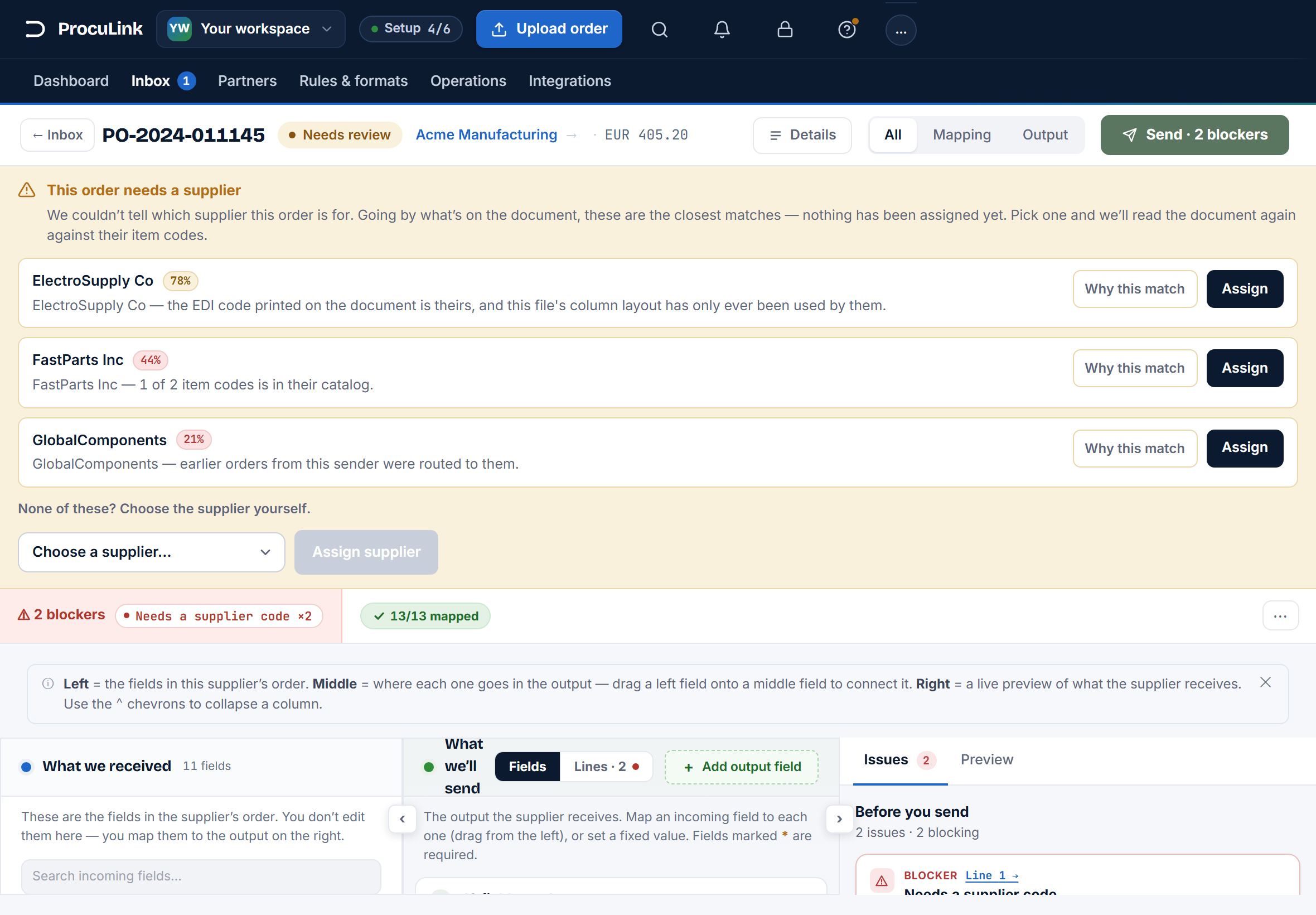
A banner reading This order needs a supplier takes priority over everything else on the screen. Until a supplier is set there is nothing to check the item codes against, so the rest of the review would be guesswork.
ProcuLink will have offered a short ranked list of the closest matches — up to three — each with a match percentage and a one-sentence reason. Nothing has been assigned. The banner says so directly: "these are the closest matches — nothing has been assigned yet." No option is pre-selected and no order is ever routed automatically.
Before accepting one, open Why this match. It names the signals the ranking used:
| Signal | What it means |
|---|---|
| Identity match | A VAT number, registration number, or GLN on the document matches that supplier's identifiers |
| Sender domain | The order arrived from a domain recorded as theirs |
| Past routing | Orders that looked like this one have gone to them before |
| Document layout | The document's shape resembles ones from that supplier |
| Catalog match | Item codes on the order exist in that supplier's catalog |
| Name on document | Their name appears in the text |
A high score built on Identity match and Catalog match is worth more than a high score built on layout alone. Read the reason, then choose Assign.
If none of them is right, None of these? Choose the supplier yourself opens the full list.
The banner is replaced by "Supplier assigned — reading the document again…", and the lines are re-checked against that supplier's real item codes.
If this fails
An empty picker means the workspace has no suppliers — the banner offers Add a supplier →. If orders from one sender land here every single time, the document is not naming them in a way ProcuLink can match: fill in that supplier's identifiers and import their catalog, and it usually stops for good.
Work the Before you send list
The screen is three columns: What we received on the left, What we'll send in the middle, and on the right a panel with two tabs — Issues and Preview.
Start on Issues, headed Before you send with a count. Each entry says what is wrong, which line it is on, and — importantly — whether it is a BLOCKER or a WARNING.
Only blockers stop the send. A warning is ProcuLink telling you something is unusual, not refusing to proceed.
Click a line reference to jump straight to the field. Each issue offers the action that fits it:
- Accept suggestion — a supplier code was suggested, with its confidence beside it. Taking it fills the field.
- Enter code or Enter manually — type the supplier's code yourself into the
supplier codefield and Save. - Confirm — the value looks right but was flagged for a human to look at. Confirming clears it; Change code if it is not.
Two bulk actions sit above the list when there is anything to bulk-accept: Resolve all suggested, and Accept ≥85% only for when you would rather review the weaker ones by hand.
Item codes are the bulk of this work, and they only need doing once per code — resolve item codes in review covers why, and how to make the next order shorter.
The panel reads Ready to send · No open issues. This is everything ProcuLink can check before sending — it is not a guarantee that the supplier will accept the order.
If this fails
If a lot of lines need manual codes on every order from one supplier, do not keep grinding through them. That is a missing catalog, and importing it once removes most of this list permanently.
Look at what will actually be sent
Switch the right-hand panel to Preview. It renders the document the supplier will actually receive, in the output format set on their delivery configuration.
Check the things a supplier's system rejects on: the purchase-order number is the one they expect, the item codes are theirs rather than yours, quantities and units are right, and the total matches the header.
If the shape is wrong rather than the values — a field they need is missing, or named differently — that is a mapping job, not a review job: map a supplier's purchase-order fields.
Send it
Press the send button. It carries its own state: while blockers remain it reads Send with the blocker count and refuses, with a tooltip telling you to fix the issues below and that each one can be tapped to jump to its field.
When it goes through, the order moves ready_to_deliver → delivering → delivered.
The order shows delivered, and the attempt is recorded on the order itself with the supplier's response.
If this fails
Delivery not set up is not a failure of the order — nothing is configured to send it to yet. Set up the
supplier's delivery and send again. A genuine failure lands in
delivery_failed with the error captured, and can be retried once the cause is fixed.
Know what delivered does and does not mean
Delivered means the supplier's system accepted the transmission. It does not mean a human or an ERP on their side accepted the order.
A supplier can still come back and reject it — unknown item codes, a price that does not match their contract, a delivery date they cannot meet. ProcuLink tracks that separately, so a delivered order can later be marked as rejected by the supplier, and the order keeps both facts.
Practically: delivered means stop worrying about the plumbing. It does not mean stop reading their
replies.
You can tell the three different "it didn't work" cases apart — the order was never sent, the transmission failed, or the supplier turned it down — and each has a different fix.