Resolve item codes in review
Match a buyer code to the supplier's own code once, and have it remembered.
Understand what is being matched
The buyer's document says WIDGET-BLUE-M. The supplier's system has never heard of that; they call it
ABC-100. Somebody has to know that those are the same thing.
That translation is the item-code mapping, and it is per supplier — the same buyer code can mean different things to two different suppliers, which is exactly why resolution happens on an order that already has a supplier.
You only have to do it once per code. The second order that carries WIDGET-BLUE-M resolves itself.
Load the catalog first if you have not
This step is out of order on purpose. Resolving twenty codes by hand takes twenty minutes; importing the supplier's price list takes ten and removes most of them.
With a catalog loaded, three things change: suggestions are drawn from codes the supplier really sells rather than guessed, a code that does not exist in their catalog is flagged instead of passing quietly, and the code field becomes a search over their real products.
See import a supplier catalog from a file, or point ProcuLink at their feed with keep a catalog in sync automatically.
If this fails
No catalog available from the supplier? Carry on without one. Every code you resolve by hand is saved, so the mapping table fills up from real work — it is slower to start, but it is not a dead end.
Work through the suggestions
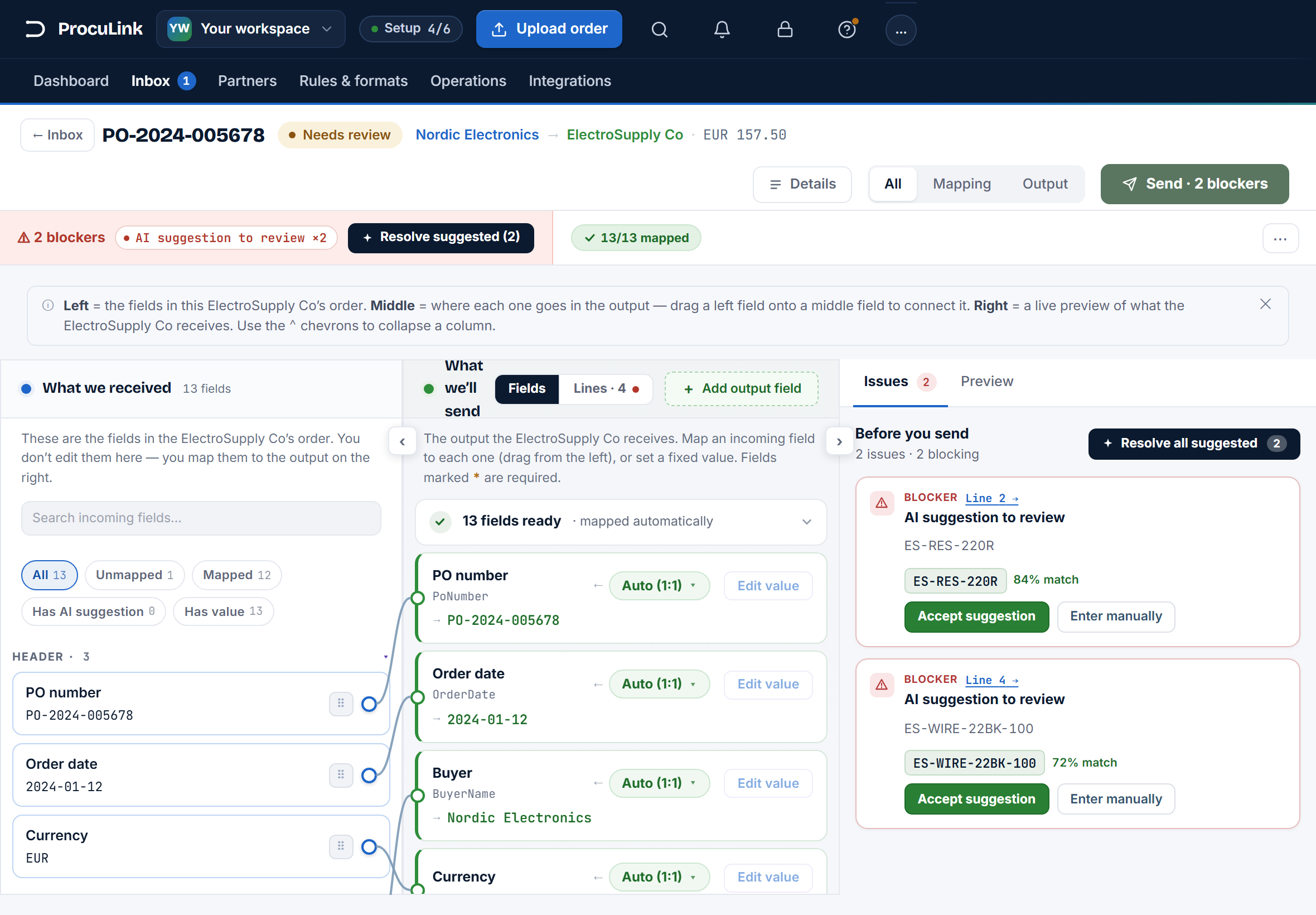
In the Before you send list, an unresolved line offers the supplier code it thinks is right, with a confidence percentage beside it — for example "87% match".
Three responses, and choosing between them is the whole skill:
- Accept suggestion — you recognise it as correct. The field is filled and the line clears.
- Enter manually — the suggestion is wrong. Type the supplier's real code into the
supplier codefield and Save. With a catalog loaded this searches their products as you type. - Leave it and come back — nothing is applied until you act. A suggestion is never taken automatically, and the confidence figure is always visible so you know how much to trust it.
Read the confidence honestly. A high number means the match is well supported, not that it is certainly right — for anything that would be expensive to get wrong, check the description as well as the code.
If this fails
If a line offers no suggestion at all, there is nothing plausible to offer: the code is absent from the catalog, or the description is too thin to match on. Ask the supplier what they call it, enter it by hand, and it will be remembered.
Use the bulk actions deliberately
On an order with many suggested lines, two buttons sit above the list:
- Resolve all suggested — accepts every suggestion on the order, whatever its confidence.
- Accept ≥85% only — accepts the strong ones and leaves the rest for you.
Accept ≥85% only is the one to reach for most days. It clears the boring majority and leaves you the handful that genuinely need a decision, which is where your attention is actually worth something.
Save Resolve all suggested for orders from a supplier whose catalog you trust and whose codes you have seen resolve correctly many times before.
The issue count drops sharply, and what remains is a short list of lines that a person really does need to look at.
If this fails
Accepted something wrong? Enter the correct code manually on that line. The later resolution replaces the earlier one for that buyer code and supplier — there is nothing to undo separately.
See what was remembered
Open Partners → Suppliers → the supplier → Mappings. Every resolution you made is there, as a row: the Buyer code, the Supplier code, the Source it came from, and its Confidence.
The Source tells you where each mapping came from:
| Source | Meaning |
|---|---|
| Manual | Somebody typed it. The most trustworthy kind. |
| AI | A suggestion that was accepted in review. |
| Imported | It came from a mapping file loaded in bulk. |
| Inherited | It came from a broader mapping rather than this supplier specifically. |
Confidence is shown as a percentage — high in green, middling in amber, low in red — so a table full of low red numbers is a signal to check a few by hand rather than trust the lot.
The Mappings tab has rows in it, and the next order from this supplier arrives with those lines already resolved.
Confirm the next order is shorter
The real test is the second order. Upload or wait for another order from the same supplier and open it.
Lines carrying codes you have already resolved should arrive filled in, leaving only genuinely new products in the Before you send list. If the list is just as long as last time, the codes on the two documents are not identical — a stray prefix, a trailing space, or a different code column in the buyer's export.
Reviewing an order from an established supplier takes a minute or two, and the work you did on the first one is not repeated.
If this fails
If suggestions are consistently poor for one supplier, the usual causes are a stale catalog (re-import it, or put it on a schedule) or a buyer export whose item column is not the one the supplier trades on. More on how suggestions are produced and grounded: how AI mapping suggestions work.