Receive orders by email
Use the address ProcuLink gives your workspace, add a forwarding rule, or read a mailbox you already own over IMAP.
Copy the address your workspace already has
Every workspace gets its own address for receiving orders. Nothing to register, no mailbox to create — it exists from the day the workspace does.
Open Settings → Email intake. Under Your inbound email address you will find an address
in the form your-workspace@orders.proculink.eu, where the first part is your workspace slug.
Use the Copy button rather than retyping it.
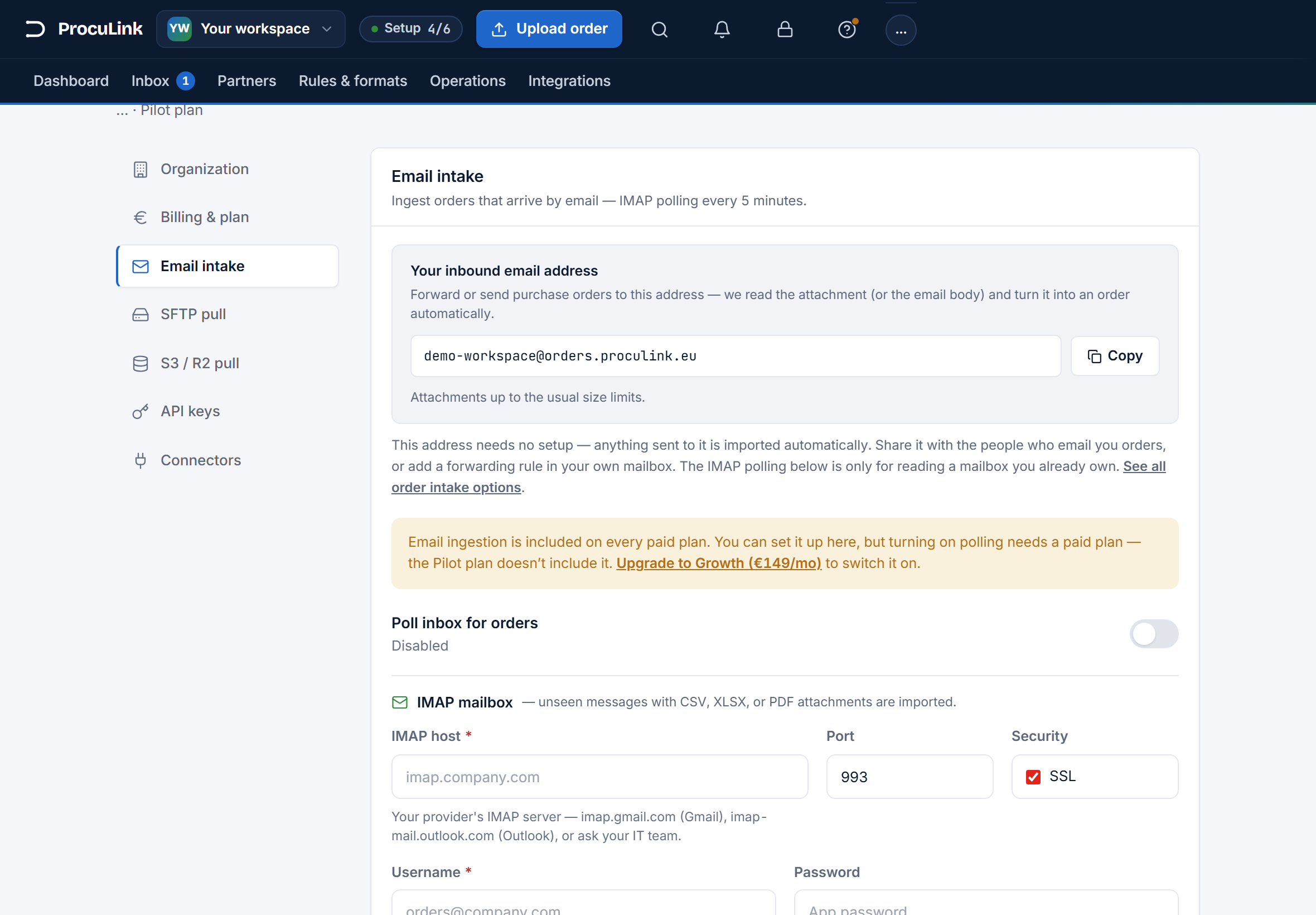
Mail sent to that address is imported automatically. ProcuLink reads the attachment, or the body of the message when there is no attachment, and turns it into an order.
If this fails
No Email intake tab means your account does not have access to workspace settings. Ask whoever set the workspace up — the tab is part of Settings, not a paid add-on.
Send one order to it as a test
Do not announce the address to your buyers yet. Send one real purchase order to it yourself first, as an attachment, from any mail client.
Then open Inbox. Within a minute or so the order appears with its status moving through parsing to review. Supported attachments are the same ones the upload page accepts — CSV, XLSX, and text-based PDF are the reliable everyday formats.
The order is in your Inbox with the correct purchase-order number and line items, and you never touched the upload page.
If this fails
Nothing arrives at all: check the address character by character — a wrong workspace slug goes nowhere and generates no error on your side. A message that arrives but parses badly is a document problem rather than an email problem; see troubleshooting common parse errors.
Have orders reach it without anyone remembering to
Two ways, and they are not exclusive:
Tell the senders. Give the address to the buyers or systems that email you purchase orders, the same way you would give out any other shared mailbox. This is the shortest path and needs nothing from your IT team.
Forward from your own mailbox. If orders already arrive at an address of your own — say
orders@yourcompany.com — add a forwarding rule there that copies matching mail to your
ProcuLink address. The rule lives in your mail provider (Gmail filters, Outlook rules, or your
mail admin's console); ProcuLink has no forwarding settings of its own, because the rule has to
run where the mail lands.
Keep the rule narrow. Forward only what is actually an order — filter on sender, subject, or the presence of an attachment — so newsletters and replies do not turn into parse failures.
If this fails
Forwarded mail sometimes arrives with the attachment stripped or re-encoded, particularly when a rule forwards "as text" or the message was already forwarded once. Send the original as an attachment instead, or use the direct-to-address route above.
Or read a mailbox you already own, over IMAP
Use this when the orders must stay in a mailbox you control and you would rather not change how senders address their mail. It is an alternative to step 3, not an addition to it.
In Settings → Email intake, turn on Poll inbox for orders and fill in the IMAP mailbox section:
| Field | What to enter |
|---|---|
| IMAP host | Your provider's server — imap.gmail.com, imap-mail.outlook.com, or ask your IT team |
| Port | 993, with SSL left on |
| Username | Usually the full email address |
| Password | An app-specific password for Gmail and Outlook, not your normal login |
| Folder | INBOX, or another folder name to read that one instead |
| Default supplier | The supplier that imported messages are attributed to |
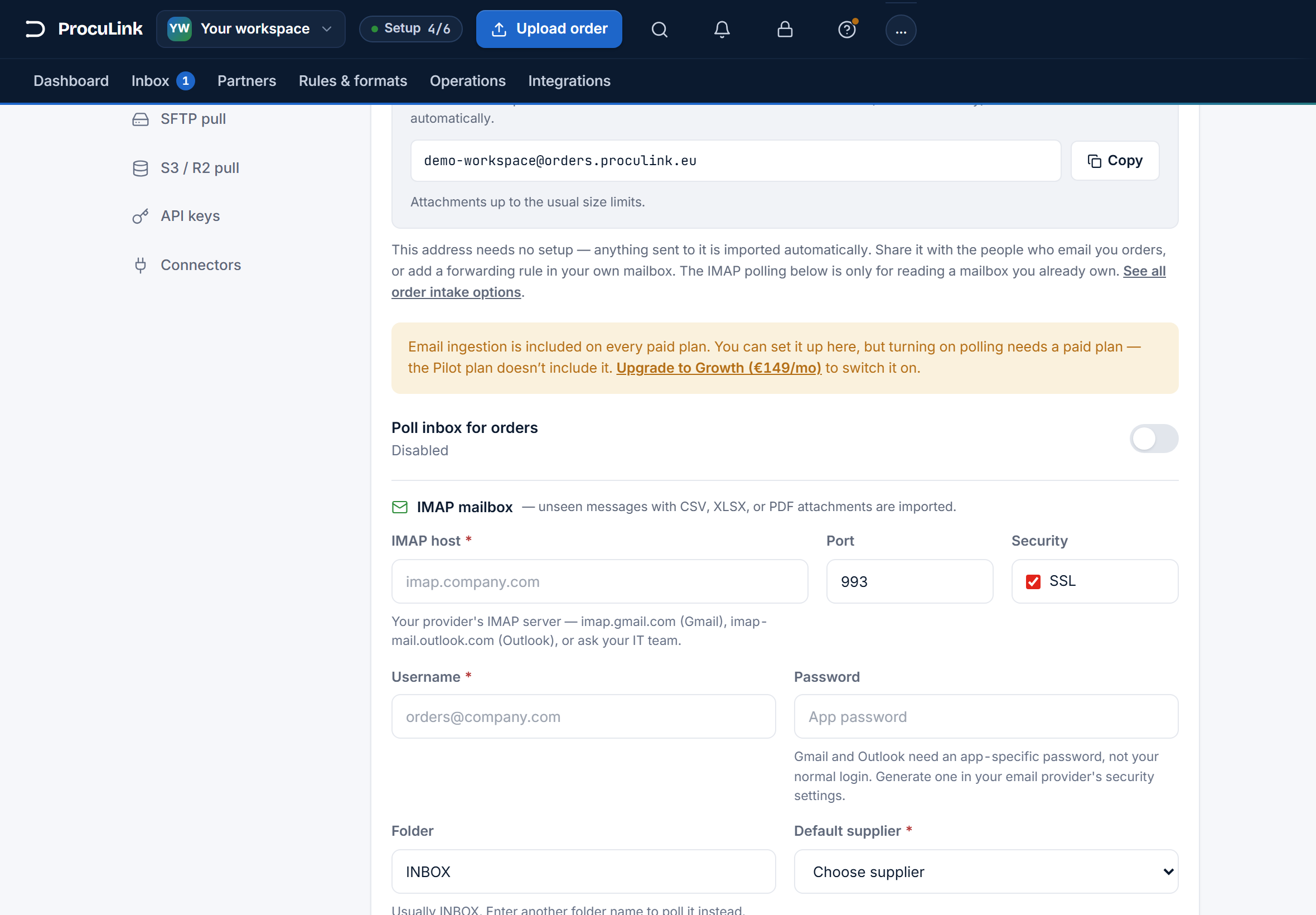
Save with Save email. ProcuLink checks the folder every five minutes, imports messages it has not seen before, and does not delete or move your mail.
Polling is included on every paid plan. On Pilot you can fill the form in and save it, but turning polling on requires an upgrade — the settings page says so at the point where it bites.
If this fails
Login rejected is almost always a normal password used where an app password is required; generate one in the provider's security settings. Connects but imports nothing usually means the orders are in a different folder, or the messages carry no supported attachment. Per-provider hosts, ports, and the Proton caveat are in polling an existing mailbox with IMAP.
If this is the route you are taking, do it properly rather than from this summary: poll a mailbox you already own over IMAP walks through the app password, the per-provider host, the folder choice, and how to notice when a rotated credential silently stops the poller.
Handle an order that arrives without a supplier
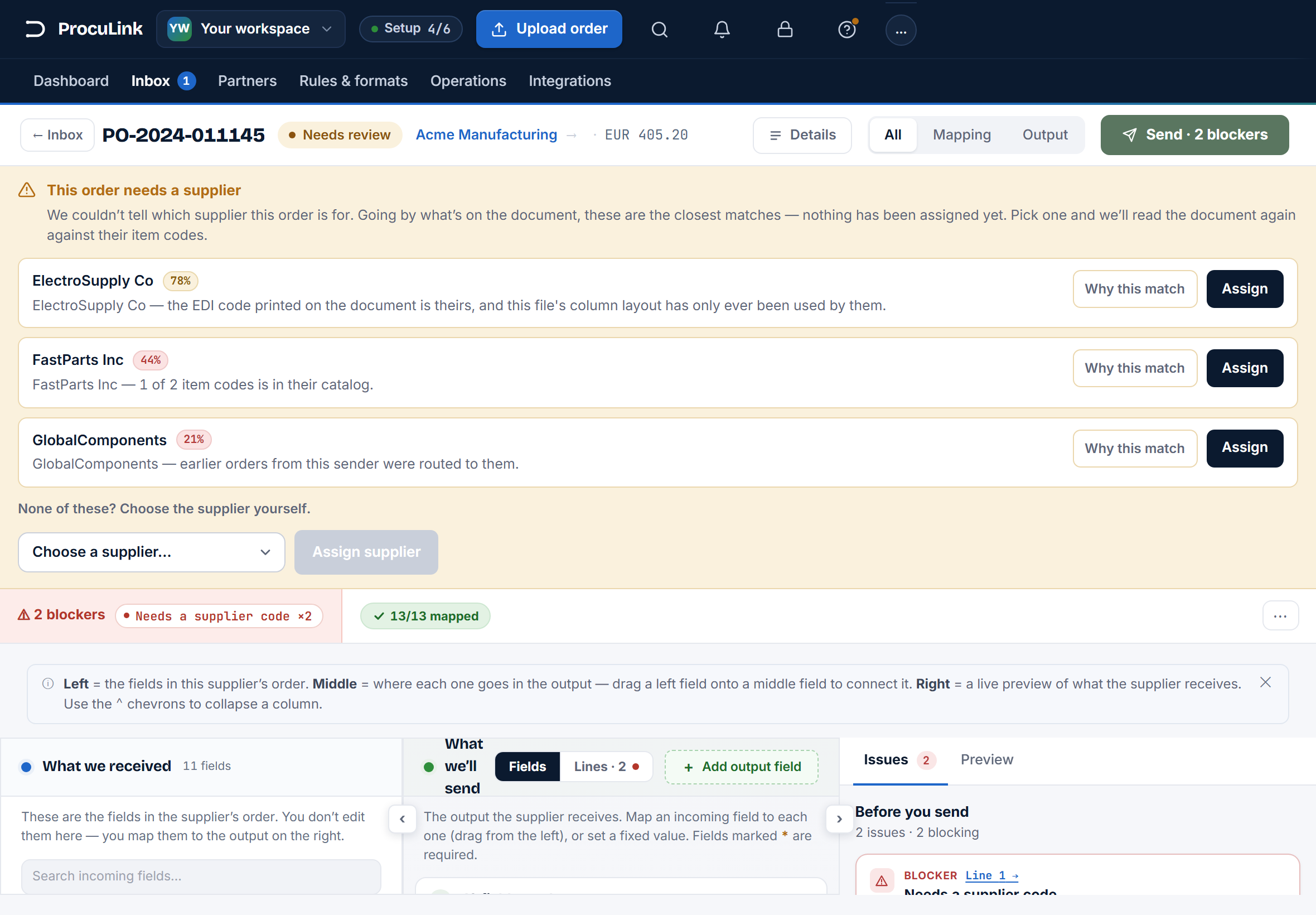
Mail can arrive from anyone, so ProcuLink works out which supplier an order is for by reading the document. When it cannot tell, it does not guess and it does not fail. The order waits for you, listed in the Inbox as Needs supplier.
Open it. A banner across the top says "This order needs a supplier" — pick one from the list and choose Assign supplier. ProcuLink then reads the document again against that supplier's item codes, so the assignment does real work rather than just filing the order.
The status badge on the order screen itself reads Needs review rather than Needs supplier, because the individual lines also need attention. The banner is the thing to act on first: without a supplier there is nothing to check the lines against.
To see everything waiting on a decision like this, open the orders that need a supplier.
If this fails
If the picker is empty you have no suppliers yet — add one first, and the banner will offer the link. If orders from one sender land here every time, the document does not name the supplier in a way ProcuLink can match; loading that supplier's catalog usually fixes it for good. See supplier item codes, catalogs, and mappings.
Confirm it keeps working
Check these three things a day or two after you switch a sender over:
- Inbox counts. Orders keep arriving on the days you expect them.
- Nothing stuck in Needs supplier. One or two is normal for a new sender. A pile means a supplier or catalog is missing.
- Last poll, if you use IMAP. Settings → Email intake shows when the poller last ran. A timestamp that stops advancing means the credentials stopped working — usually a rotated or revoked app password.
Orders arrive by themselves, land in the Inbox already parsed, and the only ones that need you are the ones that genuinely need a decision.