Poll a mailbox you already own over IMAP
Per-provider hosts, app passwords, and the folder to read — set up once and checked every five minutes.
Check you actually need IMAP
Every workspace already has an address of its own — your-workspace@orders.proculink.eu — that needs no
mailbox, no password, and no configuration. If you can ask senders to use it, or forward to it, do that
instead: receive orders by email is the shorter path and there is
no credential to store or rotate.
IMAP polling is for the case where neither is acceptable: the orders must stay in a mailbox you control, and you would rather not change how senders address their mail.
You are here on purpose, having ruled out the option that needs no credentials.
Generate an app password, not your login password
Do this before you open ProcuLink, because it is the step that actually takes time.
Gmail and Microsoft 365 refuse plain IMAP sign-in with your normal password when two-factor or MFA is switched on — which it usually is. You need a dedicated app password: a separate credential, scoped to mail access, that can be revoked on its own without touching the account password.
- Google: account security settings → app passwords. Requires 2-Step Verification to be on first.
- Microsoft 365 / Outlook: account security settings → app passwords. Your tenant administrator may have disabled them, in which case they have to enable them for the account, or you use a different mailbox.
Generate it against the mailbox you are going to poll, and paste it straight into ProcuLink in step 4 — these are usually shown once.
If this fails
If your organisation forbids app passwords outright, IMAP polling is not available to you on that
mailbox. Use the hosted your-workspace@orders.proculink.eu address with a forwarding rule instead — no
credential leaves your side at all.
Find your provider's host and port
| Provider | IMAP host | Port |
|---|---|---|
| Gmail / Google Workspace | imap.gmail.com | 993 |
| Microsoft 365 (business) | outlook.office365.com | 993 |
| Outlook.com (personal) | imap-mail.outlook.com | 993 |
| Anything else | Ask your provider or IT team | 993 |
Use 993 with SSL left on. That is IMAP over TLS and is correct for every provider above. Do not use
the older plaintext port 143.
If this fails
Proton is only reachable over IMAP through the local Proton Bridge app,
which listens on 127.0.0.1:1143 on the machine running it. ProcuLink's poller runs on our servers, so it
cannot reach an instance of that app on your laptop. Proton works here only where Proton Bridge runs
on a host we can reach — otherwise use the hosted address.
Fill in the IMAP mailbox form
Open Settings → Email intake. Below the hosted address you will find IMAP mailbox — unseen messages with CSV, XLSX, or PDF attachments are imported.
| Field | What to enter |
|---|---|
| IMAP host | From the table in step 3. Required. |
| Port | 993, with SSL ticked. |
| Username | Usually the full email address, for example orders@company.com. Required. |
| Password | The app password from step 2 — not your login password. |
| Folder | INBOX, or another folder name to poll that one instead. |
| Default supplier | The supplier imported messages are attributed to when the document does not identify one. Required. |
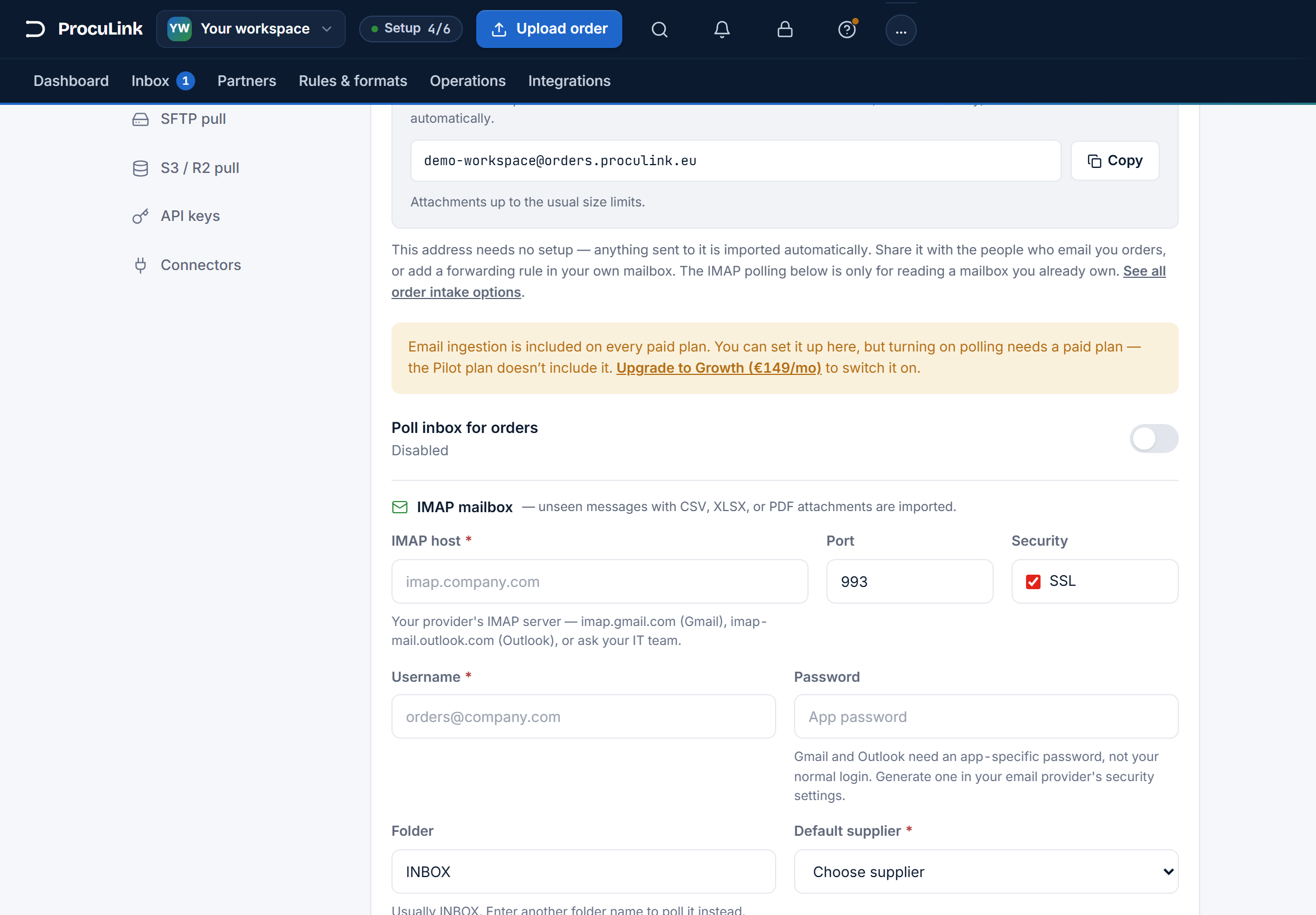
Press Save email. The footer confirms what happens to the credential: "Passwords are stored encrypted."
If this fails
If the Default supplier list reads "No suppliers yet — add one first →", stop here and add a supplier. The form will not enable polling without one, because there would be nothing to check imported orders against.
Turn on Poll inbox for orders
Switch on Poll inbox for orders. The line beside it changes from Disabled to Checking every five minutes, which is the whole schedule — there is no faster or slower option.
What the poller does, precisely:
- Reads unseen messages in the chosen folder.
- Imports CSV, XLSX, and PDF attachments. Each attachment becomes its own order.
- Marks a message it has taken as
Seen, so it is not imported twice. - Never deletes or moves your mail.
The toggle stays on after saving, and within five minutes any unread order mail already sitting in that folder appears in your Inbox.
If this fails
A toggle that will not move is the plan gate, and it says so: "Email ingestion is included on every paid plan. You can set it up here, but turning on polling needs a paid plan — the Pilot plan doesn't include it." Everything you entered is saved; polling begins when the plan changes.
Send one test message and watch it land
Send a real purchase order to that mailbox yourself, as an attachment, and leave it unread. Within about five minutes it should appear in your Inbox with the right purchase-order number and lines.
If this fails
Login rejected is almost always the login password used where an app password is required — regenerate one and retry. Connects but imports nothing means one of three things: the orders are in a different folder, the messages carry no supported attachment, or the messages had already been marked read before polling started. Per-provider detail is in polling an existing mailbox with IMAP.
Notice when it stops
An IMAP credential is a thing that expires. App passwords get rotated, revoked, or invalidated when the account's security settings change — and when that happens, mail keeps arriving in your mailbox and simply stops arriving in ProcuLink.
The tell is on the same screen: Last poll, at the bottom of the Email intake section. A timestamp that stops advancing means the poller is no longer getting in. Check it whenever the Inbox looks quieter than the mailbox.
Keep the folder narrow, too. Polling INBOX on a busy shared mailbox means every unread message with a
spreadsheet attached becomes an order. A dedicated folder, fed by a rule in your mail provider, keeps
ProcuLink looking only at mail that really is an order.
Orders arrive from a mailbox you still own and control, and you know the one number to look at when they stop.