Pull order files from an SFTP folder
Point ProcuLink at a folder another system exports to, and let it collect new files.
Check that pulling is the right shape for this source
Pulling suits a source that can only write files somewhere: an ERP export job, a warehouse system, an older back office that produces a nightly drop.
If the sender could instead call an endpoint, prefer pushing orders in over the API — a push arrives the moment the order exists, where a pull waits for the next check. Polling is the answer when push is not on offer, not the default.
You know why you are polling rather than being pushed to, which also tells you how fresh the Inbox can be.
Get the exact path, not the approximate one
Ask the sender for the absolute directory the files are written to — /exports/orders, not "the
orders folder".
This is the single most common thing to get wrong, and it fails in the worst possible way: ProcuLink connects successfully, lists a folder that does not exist or holds nothing, and imports nothing. No error is raised, because nothing went wrong — there were simply no files. A schedule can run for a week like that.
If you can, log in with the same credentials yourself once and ls the path before you type it in.
Fill in the form
Open Settings → SFTP pull. The section explains itself: "Poll a supplier/buyer SFTP folder for order files every few minutes and import them automatically."
| Field | What to enter |
|---|---|
| Host | The server hostname, for example sftp.supplier.example. Required. |
| Port | 22 unless the server was moved. |
| Username | The account ProcuLink signs in as. Required. |
| Password | The account's password. Once saved it is never shown again — the field reads "•••••••• (leave blank to keep)" on a later edit, and leaving it blank keeps the stored one. |
| Remote directory | The absolute path from step 2, for example /incoming/orders. |
| Default supplier | The supplier that imported files are attributed to. A raw file drop carries no routing of its own, so something has to say who it is from. Required. |
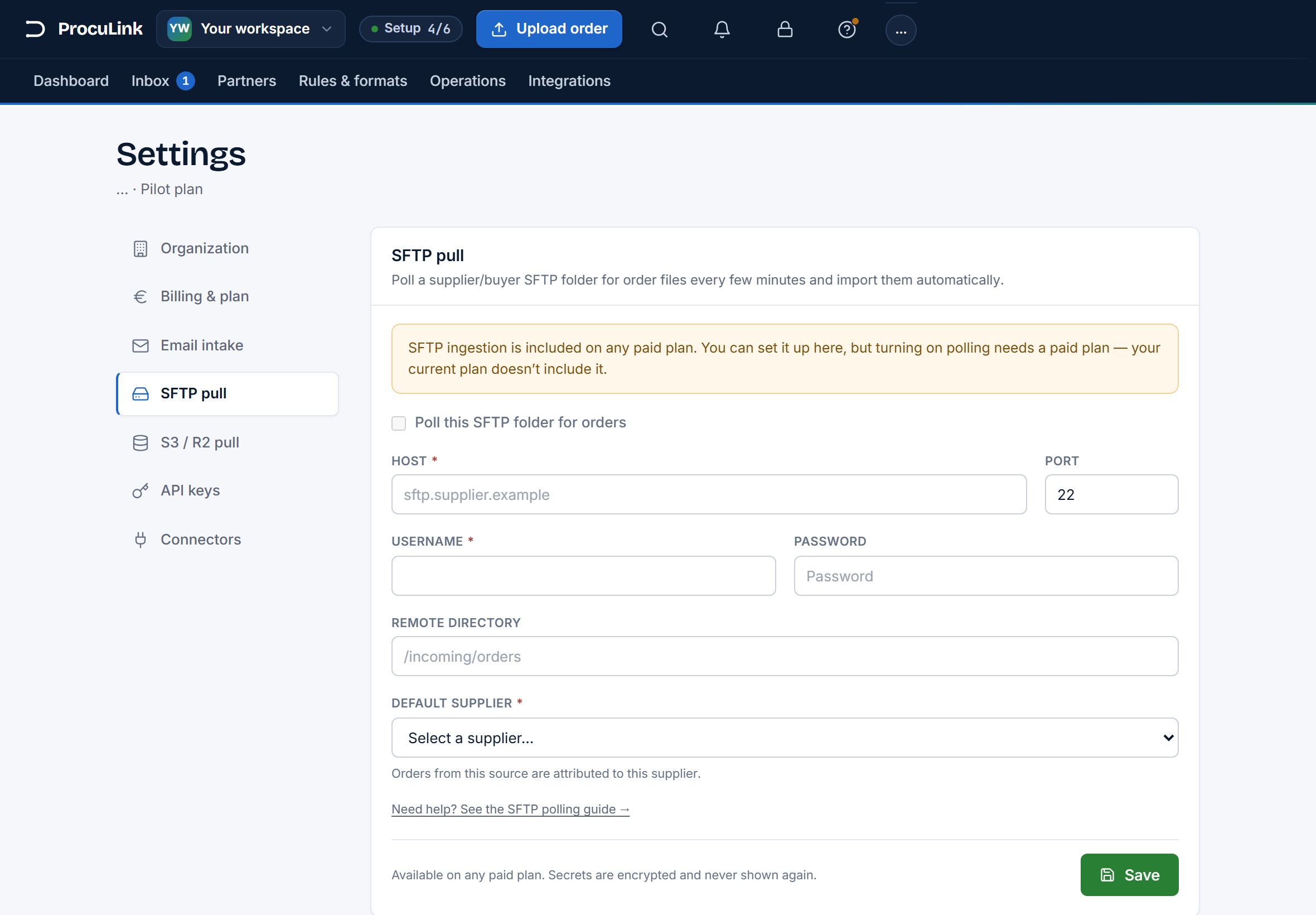
Authentication here is username and password. The pull form does not take a private key; key-based authentication is available on the delivery side, which is a different setting.
If this fails
Saving with the toggle on and a field missing gives you the exact sentence rather than a generic error: "Enter the SFTP host before enabling.", "Enter a username before enabling.", or "Choose a default supplier before enabling." Fill that field and save again.
Turn on Poll this SFTP folder for orders, and save
Switch on Poll this SFTP folder for orders and press Save. ProcuLink checks the folder every few minutes from then on, imports files it has not seen before, and records each one so it is not imported twice.
Your files are left alone. ProcuLink does not delete or move anything — the record of what has been processed lives on the ProcuLink side, so the folder looks to the sender exactly as they left it. A file re-uploaded under a new name is treated as new and will be imported again.
The toggle stays on after saving, and within a few minutes the first files in that folder appear in your Inbox, attributed to the default supplier.
If this fails
If the toggle refuses to move, read the amber notice above it: "SFTP ingestion is included on any paid plan. You can set it up here, but turning on polling needs a paid plan — your current plan doesn't include it." Everything you typed is still saved; the schedule starts when the plan does.
Make sure you never read a half-written file
If the sender writes directly into the polled folder, a poll can arrive mid-write and pick up a truncated file. The order then parses badly for no visible reason, and it is intermittent, which makes it miserable to diagnose.
Ask the sender to do one of these — either is fine, and both are standard practice:
- Write to a temporary name and rename on completion. A rename is atomic; the file appears whole.
- Write to a staging folder and move the finished file into the polled folder.
If this fails
Orders that fail to parse now and then, from a source whose format has not changed, are nearly always this. Check the raw file size against what the sender expects before looking anywhere else.
Confirm the first real run
A connection that works proves ProcuLink reached the server and listed the folder. It does not prove any particular file parses. Check the Inbox after the first scheduled run rather than trusting the save:
- Orders appear, with the purchase-order numbers the sender expects.
- The count roughly matches what was dropped. Far fewer means the path is picking up only part of the folder; none at all means the path is wrong.
- Anything that arrived but did not parse is a document problem rather than a connection problem — see troubleshooting common parse errors.
Files land in the folder and orders appear in ProcuLink without anyone touching either, and you know how to tell a connection problem from a document problem when one shows up.